Any device with a web browser can be used to view the score. Users who have smartphones are advised to take a few steps before performances or rehearsals.
Set the device to silent
Disable receiving SMS and phone calls
Turn off mobile data
Ensure that WiFI is turned on
Set a long delay before the screen turns off
Consider disabling your device password
Ensure your device is fully charged
The Chrome browser and the Firefox browser both work better than the app named ‘Browser’. Please install either of these browsers.
Joining the network
Join the Immrama wifi network.
The wifi password is 12345678
If this changes, write it down.
Smart phone users may see a prompt to log in via a web browser. Follow this prompt.
Some users will see a ‘…’ menu at the top right of the ‘sign into network’ app. Those users should select ‘use this network as is’.
Users should then open a fully-featured browser and connect to one of the following URLs:
Once logged in, users should see a button on the top left of their screen.
Button
Some users will see a button that has some text links by it or below it. Those users should click the Old Devices link and skip to step 6, or try a different web browser.
If you see this, click ‘Old Devices’
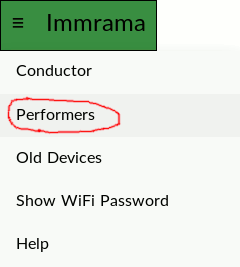
Tap the button. A drop down menu should appear.
Dropdown menu
If no menu opens, click on the Old Devices link near the bottom of the page and go to step 6, or try a different web browser.
Performers should click on the Performers link.
All Performers should then see a screen which says Ready.
Performers should use their web browser to make a bookmark of this page.
Some performers will see a small button on the top left corner. They may click it to select Full Screen.
Small button
To keep their screen from turning off, users can stroke the bottom of their screen gently throughout the piece.
Performers should not click the Conductor link. You are on the honor system.
Troubleshooting
When the piece is running, not everyone will see updates at the same time. If you do not see updates at all or if updates stop working after some period of time:
Make sure you are on the right wifi network. If your device allows you to say which devices you prefer, put this one at the top of the list.
If your device keeps switching to another network (such as eduroam) and you can’t get it to stop otherwise, tell it to forget the other network. In this case, you will need to forget the network before every performance or rehearsal of the piece. When you rejoin the ‘forgotten’ network later, you will need to have the password, etc as if you are a new user.
Your device may also switch to mobile data, so be sure this is disabled.
Check if you have javascript disabled. If so, enable it and reload the page.
If you still do not see updates, go back a page and select Old Devices. Be sure to update your bookmark.